
This tutorial will show you how to successfully install and configure the module for WHMCS. We will guide and help you step by step through the whole process.
Module download & Installation:
- Download the module from our billing area.
- Extract the zip file and upload the contents of the WHMCS folder to your WHMCS directory.
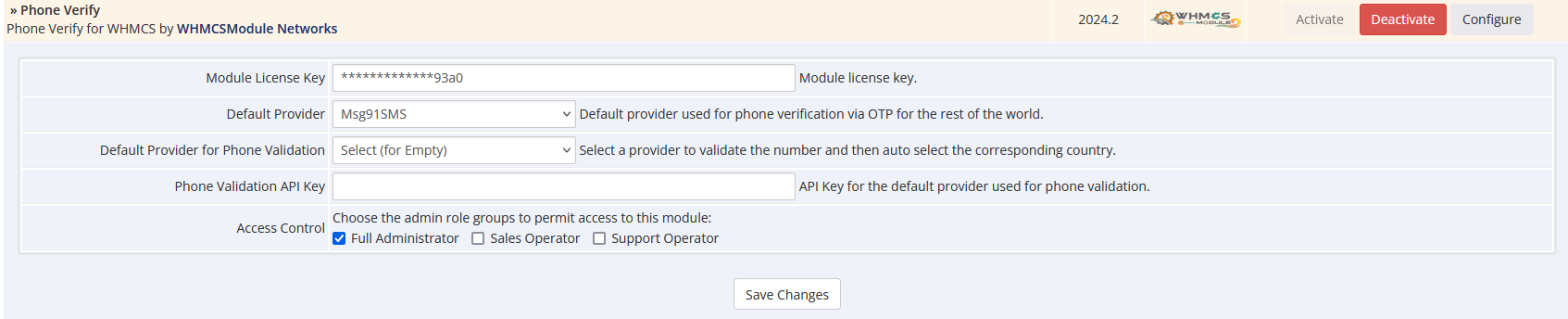
- Go to Setup > Addon Modules and activate the Phone Verify module.
- Click on the "Configure" option next to the Phone Verify module.
- Enter the license key obtained from our billing area.
- Select default SMS provider for ROW and India ( this is to verify the mobile number via SMS or Verify method).
- Select default phone validation provider from the drop down and then provide the API key below the text box.
- If you do not want to use phone validationt then leave the API key box as empty.
- Set the access control according to your needs and save the settings.
Note: Ensure that "Attempt to load all files" is enabled in your system settings. You can find this option under "System Settings" > "General Settings" > "Other" tab > "Encoded File Loading.
- Next, navigate to Addons > Phone Verify.
- Now we will be adding SMS provider API details depending on the provide copy pase the params from below, Select Update type as : Addition and in the Auth details in JSON array format text put your credentials, this may be authkey, user name or password or the mobile number.
- Sample value is give as username:username and password:password where before : is the filedname and after : is your value
- On how to get those credentials , do refer your providers document
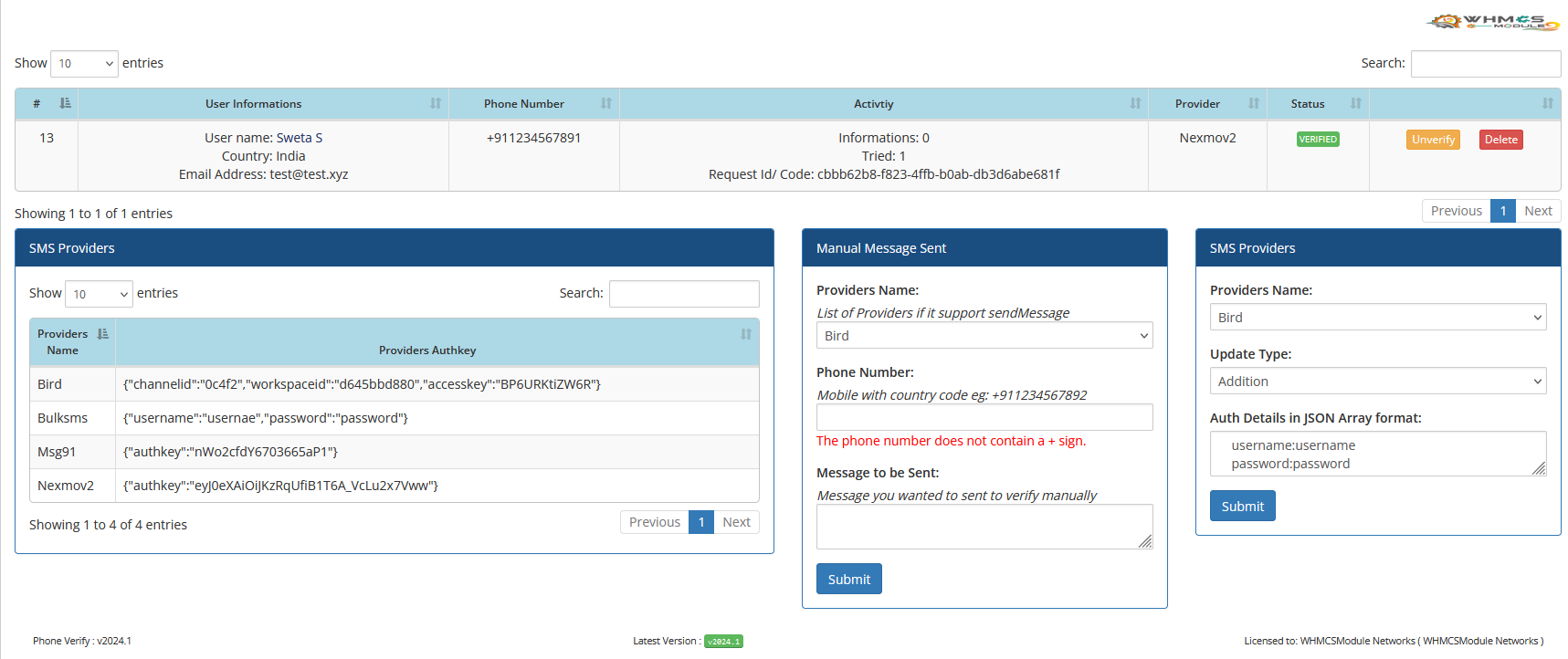
Here are the authentication credentials for the available providers. Please select the provider you would like to use.
| Provider Name | Field Names |
|---|---|
| Bird | channelid, workspaceid, accesskey |
| BulkSMS | username, password |
| ClickatellSMS | authkey, sender (your Clickatell numer) |
| Clicksend | username, password, fromnumber (your Clicksend number) |
| Medansms | email, passkey |
| MoceanapiSMS | secret, apikey, brand (Brand name assigned to you) |
| MoceanapiVerify | secret, apikey, brand (Brand name assigned to you) |
| Msg91 (Global) | authkey |
| NeutrinoapiSMS | userid, apikey, brand |
| Nexmov2 (Vonage APIs) | authkey |
| OnVerify | userid, apipass |
| PlivioSMS | authid, authtoken, fromnumber (your Plivio numer) |
| PlivioVerify | authid, authtoken |
| SMSAlertSMS (SMSAlert.co.in) | apikey, sender |
| SMSTo (sms.to) | apikey, sender |
| TelnyxSMS | apikey, from (your Telnyx numer) |
| TwilioSMS | accountsid, authtoken, fromnumber (your Twilio numer) |
| TwilioVerify | accountsid, authtoken, verifyservicesid |
- Once done with the credential addition we can conclude that module installation has been completed and we are ready.
- If your provider is not listed here you can reachout to us to add that or you can use customDevKit that shipped with the module.